Can I use Neware BTS 8.0 control third-party chambers? If you have purchased Neware testing equipment and wish to use it with environmental chambers from other brands, how can you use Neware BTS 8.0 software to control those third-party chambers?
First of all, please submit this request to your sales representative.
We will need the following information regarding your environmental chamber: its communication method and communication protocol. Our engineers need this information to evaluate whether this requires a custom software feature developed specifically for you, or if our existing software already supports it.
For example, Neware temperature chamber can be controlled on Neware BTS 8.0 via TCP/IP communication. How to set up Neware chambers?
If our engineers determine that your chamber’s communication method and protocol is already supported by our software, please proceed with the following steps:
Ensure that your Neware battery testing hardware is properly connected, your computer settings are completed, and the Neware BTS 8.0 software has been downloaded. If not, please set them up now.
- How to set up Neware BTS6000 battery module tester?
- Neware BTS4000 Set up
- Neware BTS Software Free Download
- How to map the Neware Aux channels?
Power on your environmental chamber and connect it to the network switch using the chamber’s LAN cable. (Please note that we will provide the network switch, while the required LAN cable should be supplied by your chamber vendor.)
- Set the software language of BTS 8.0 to English. The second one is Language

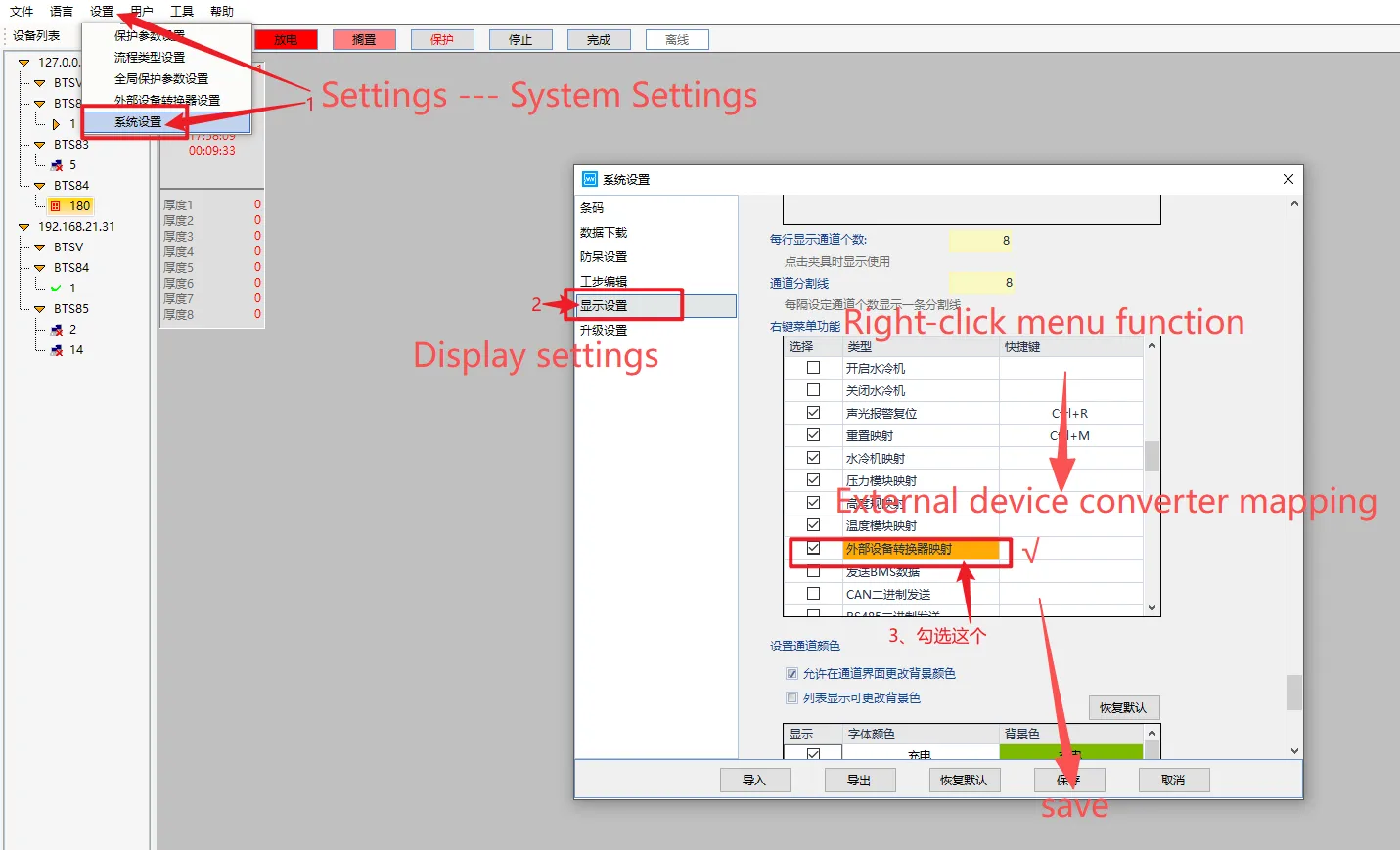
- Settings—System Settings—Display settings—find “Right click menu function”—External device converter mapping—√—Save
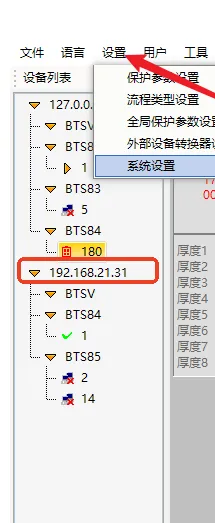
- If you have completed all the previous steps, you will see the Middle Control Unit’s IP address on the software, for example: The IP address shown in my screenshot is 192.168.21.31. Please check the IP address of your Middle Control Unit on your software.
You can also refer to the Middle Control Unit as the ‘controller’.
If you only need to put one channel of battery into the temperature chamber, then you only need to configure that one channel.
- Search your middle control unit IP address of the current channel, and Username: neware, Password: xinwei. You can switch the language to English.
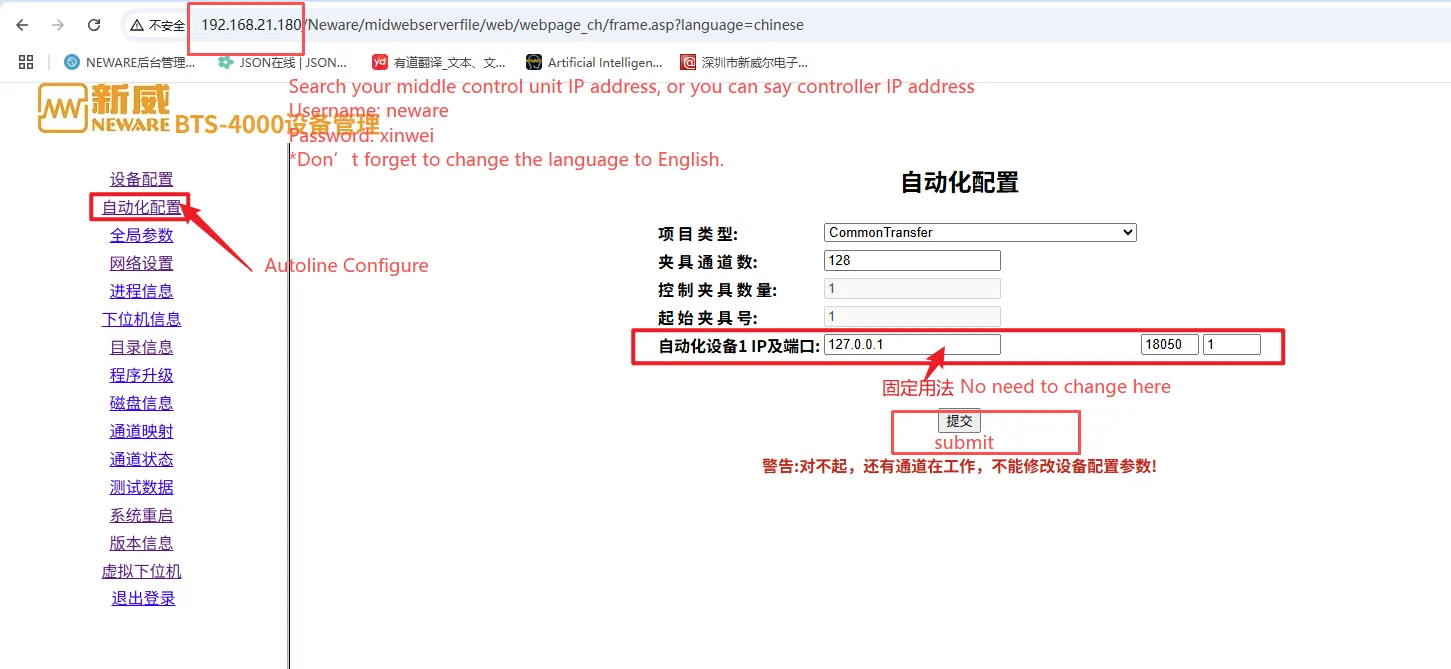
- Autoline Configure—No need to change the IP and port—Submit
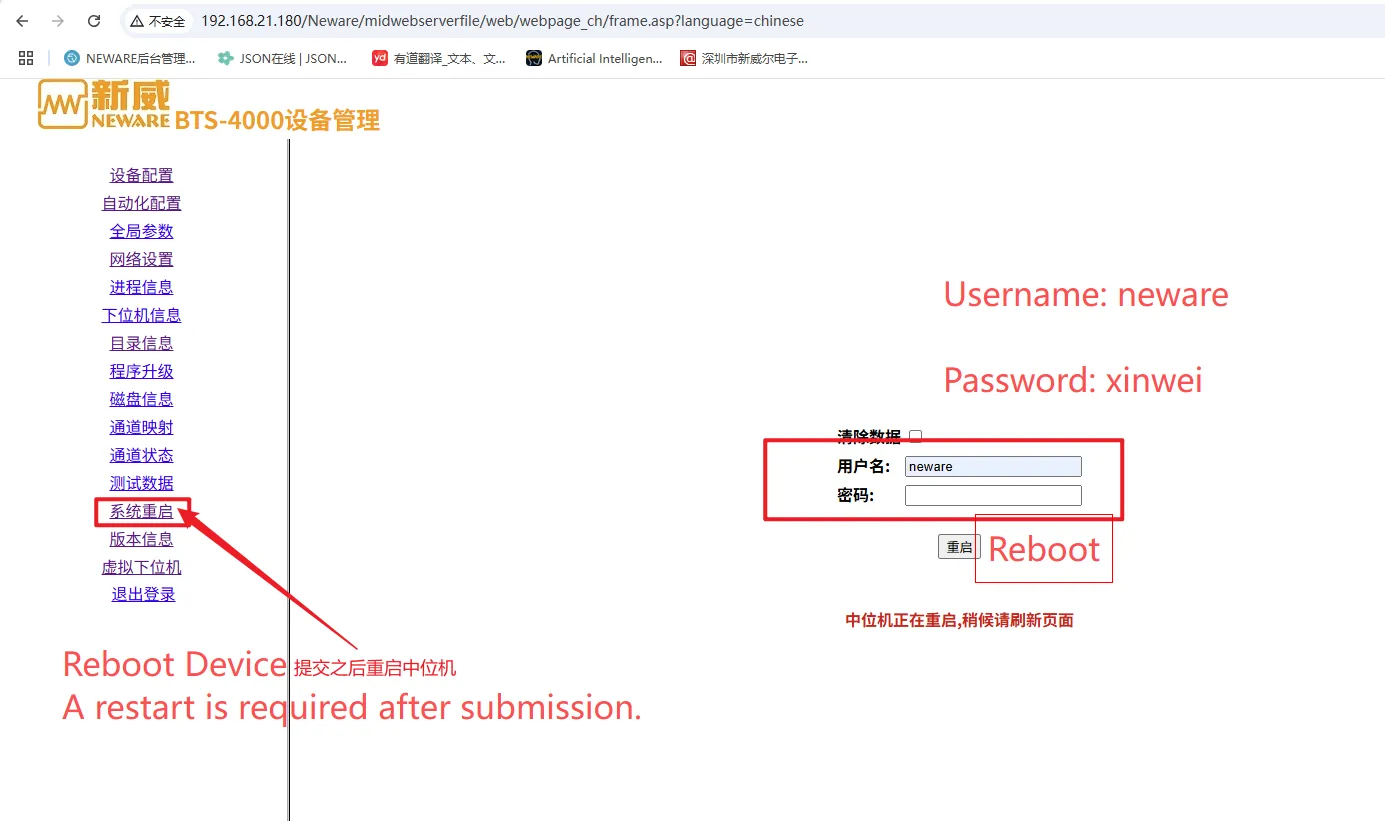
- Reboot Device— Username: neware Password: xinwei —Reboot
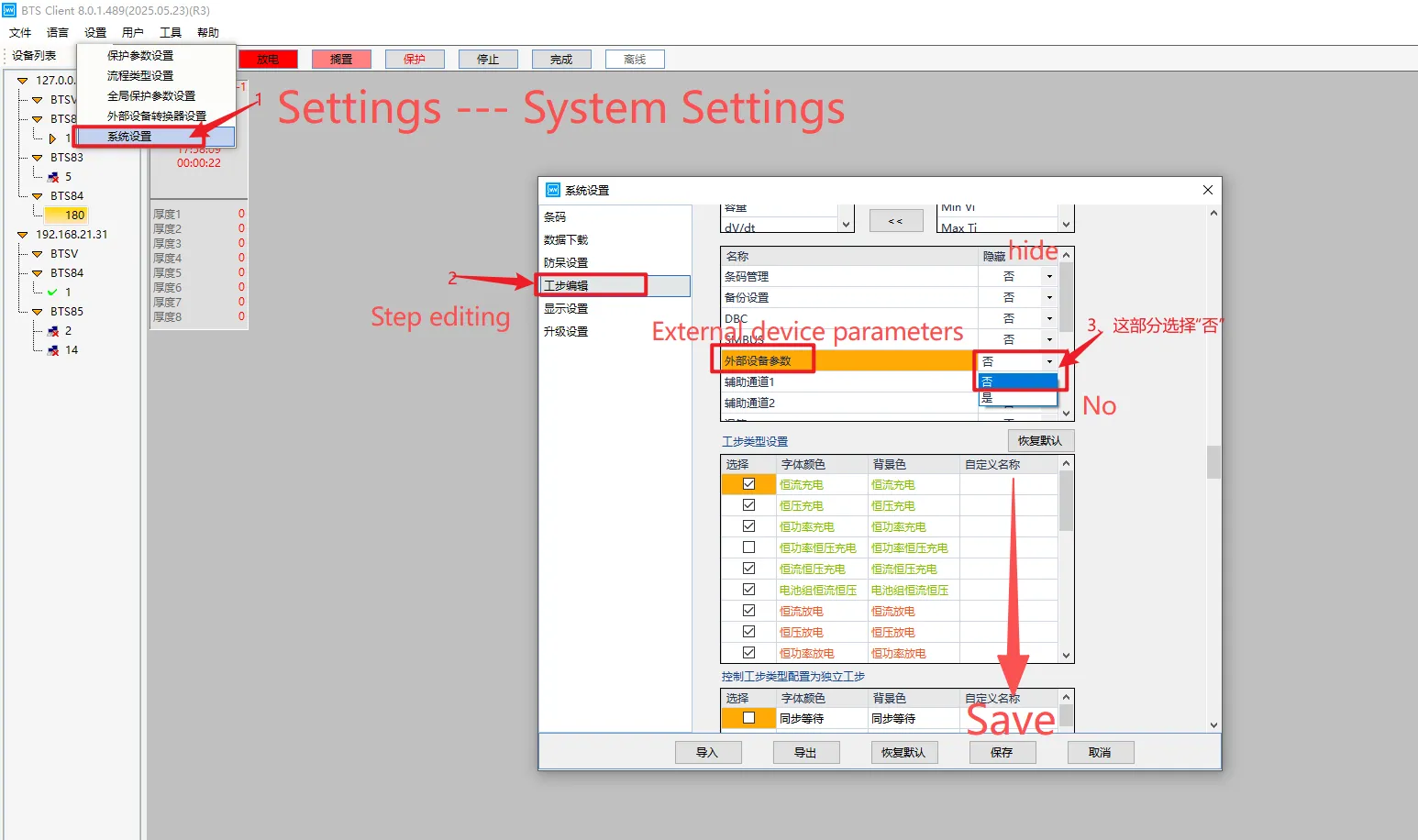
- Get back to Neware BTS 8.0, Settings—System Settings— Step editing —External device parameters— Hide? No.—-Save
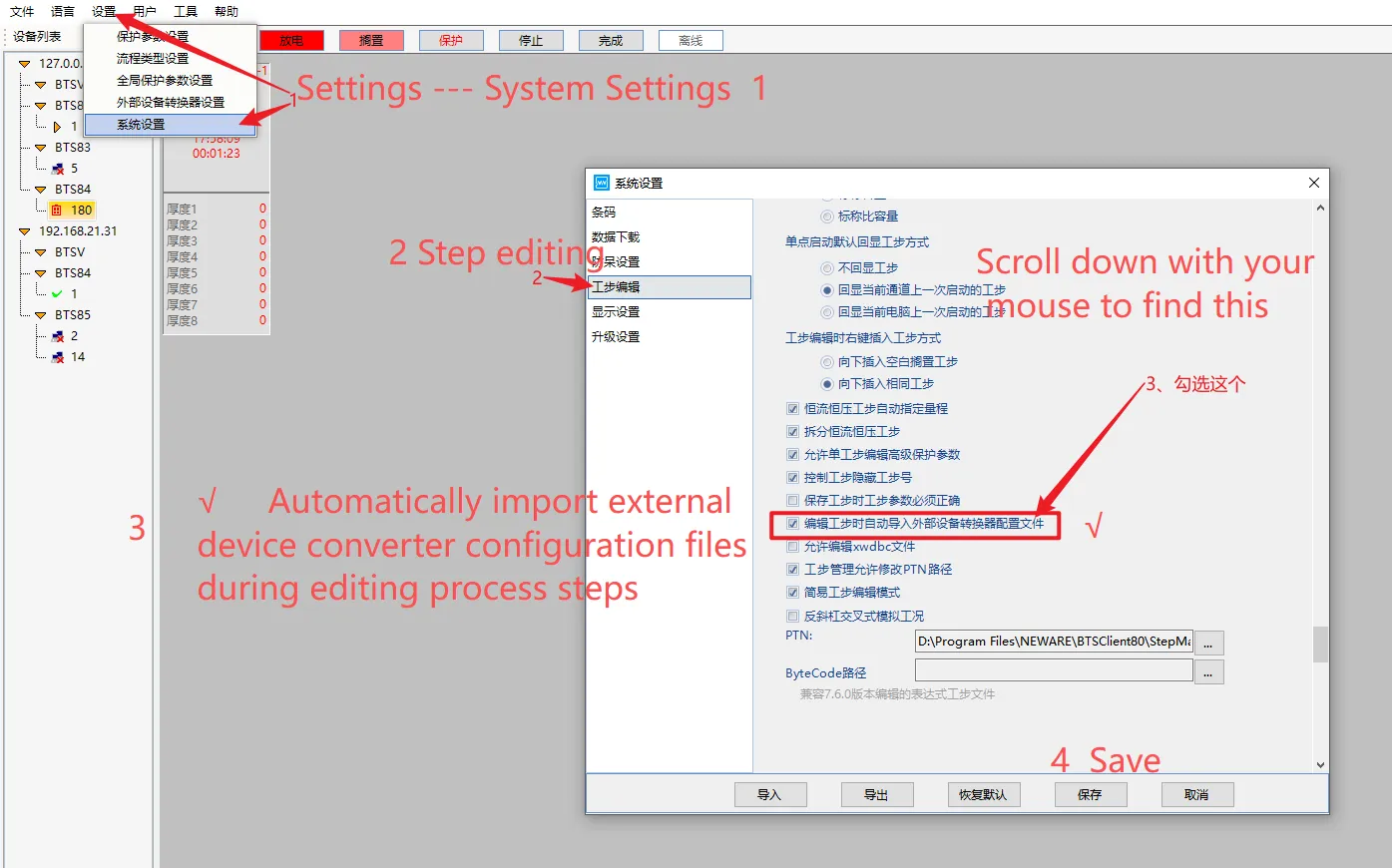
- Settings—System Settings— Step editing—Scroll down with your mouse to find this “Automatically import external device converter configuration files during editing process steps”—√—Save
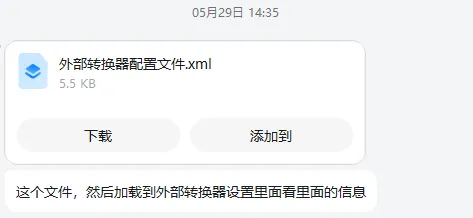
- Based on the communication method and protocol of your chamber, our engineers will edit an external device converter configuration file for you. Please download this .xml file to your desktop.
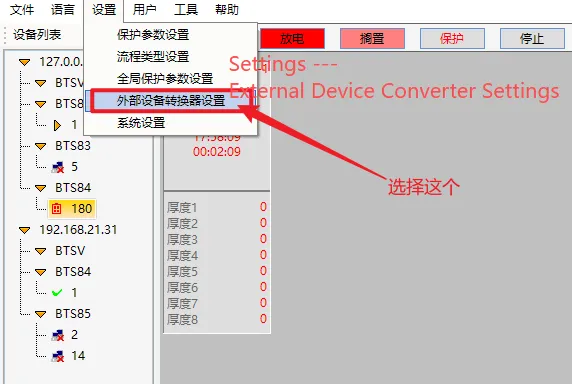
- Settings—External device converter settings
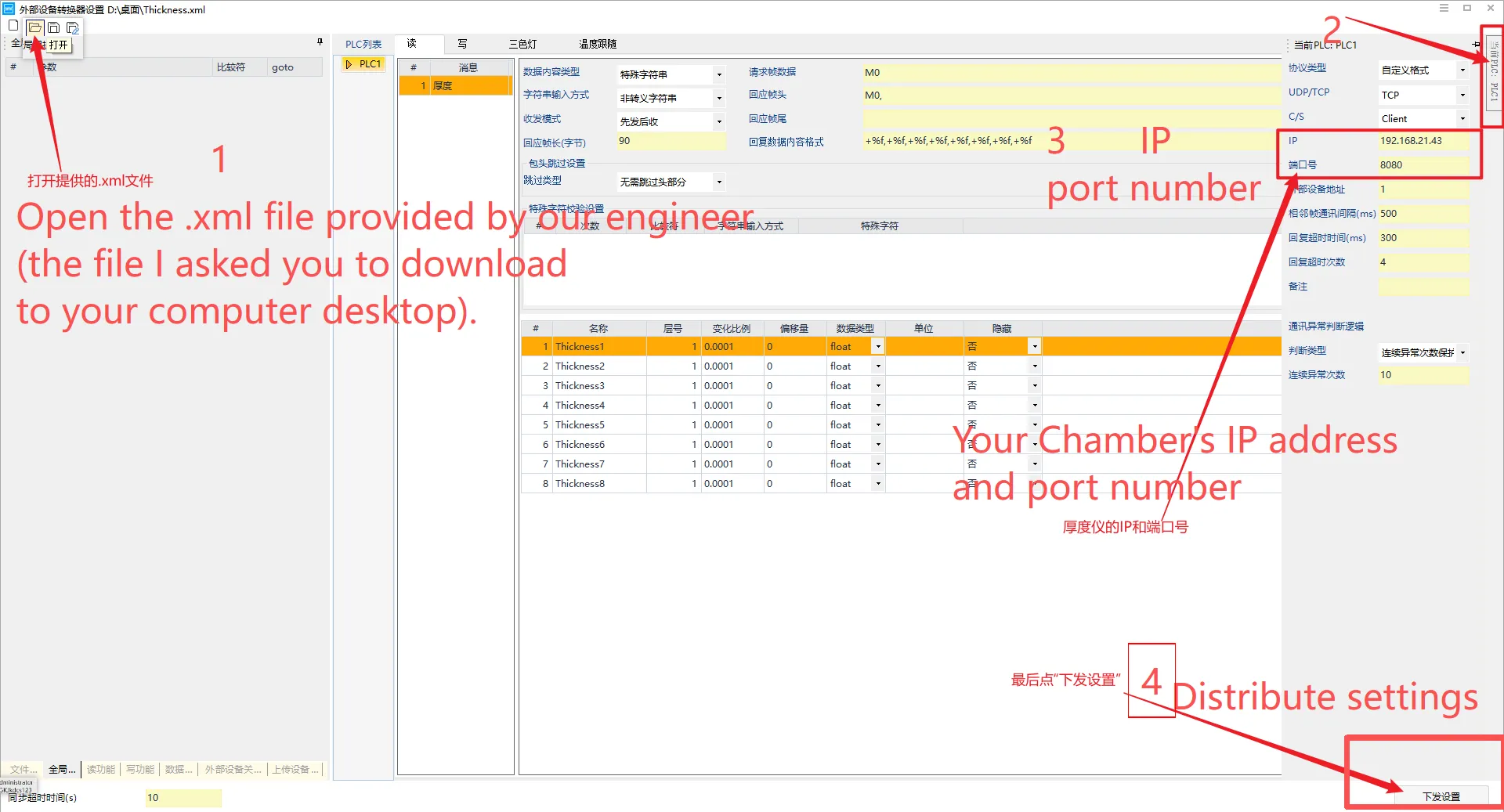
- Open the .xml file provided by our engineer (The file I asked you to download to your computer desktop)—PLC: PLC1—Your chamber IP and port number—Distribute settings
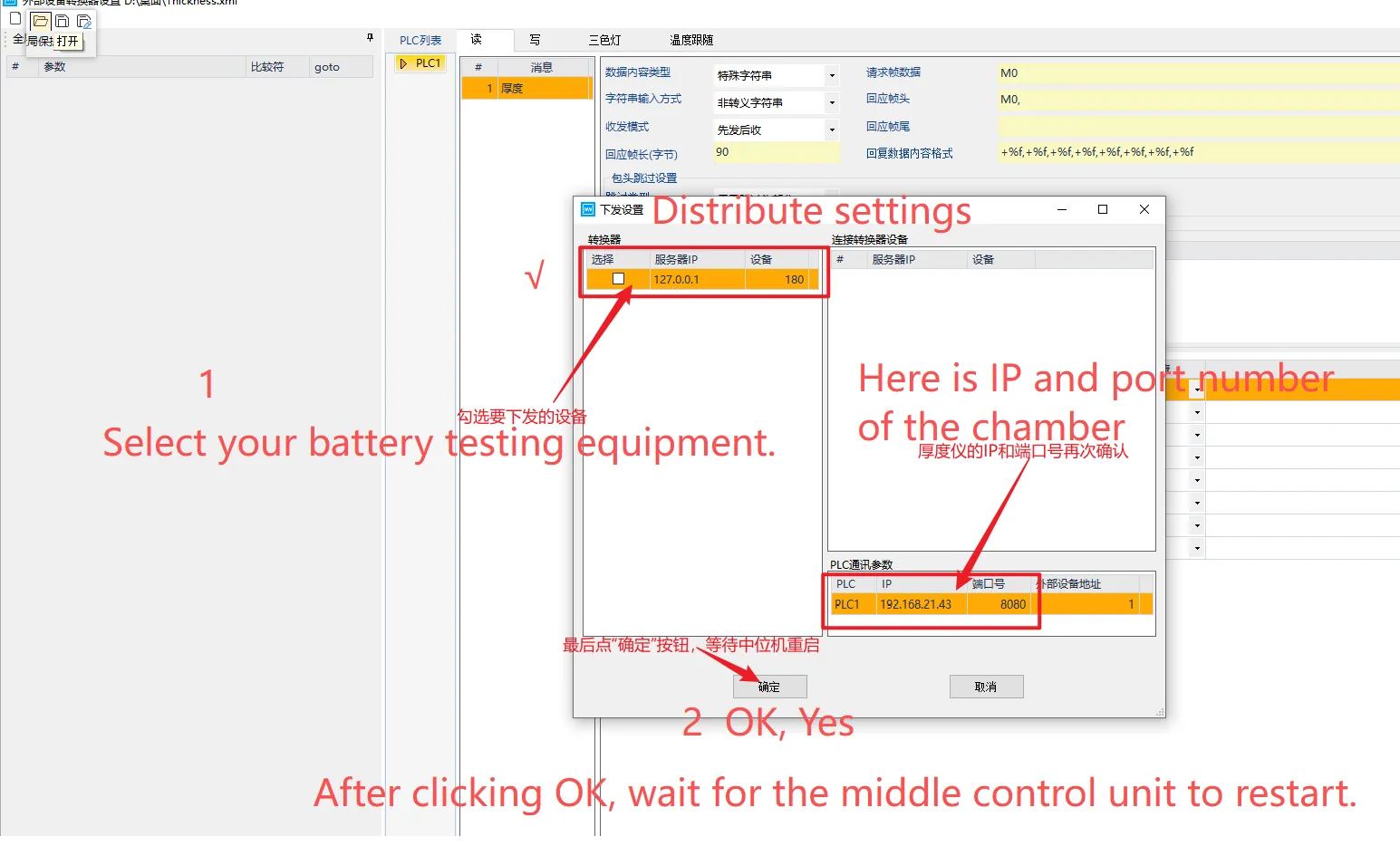
- Select your battery testing equipment—√—OK
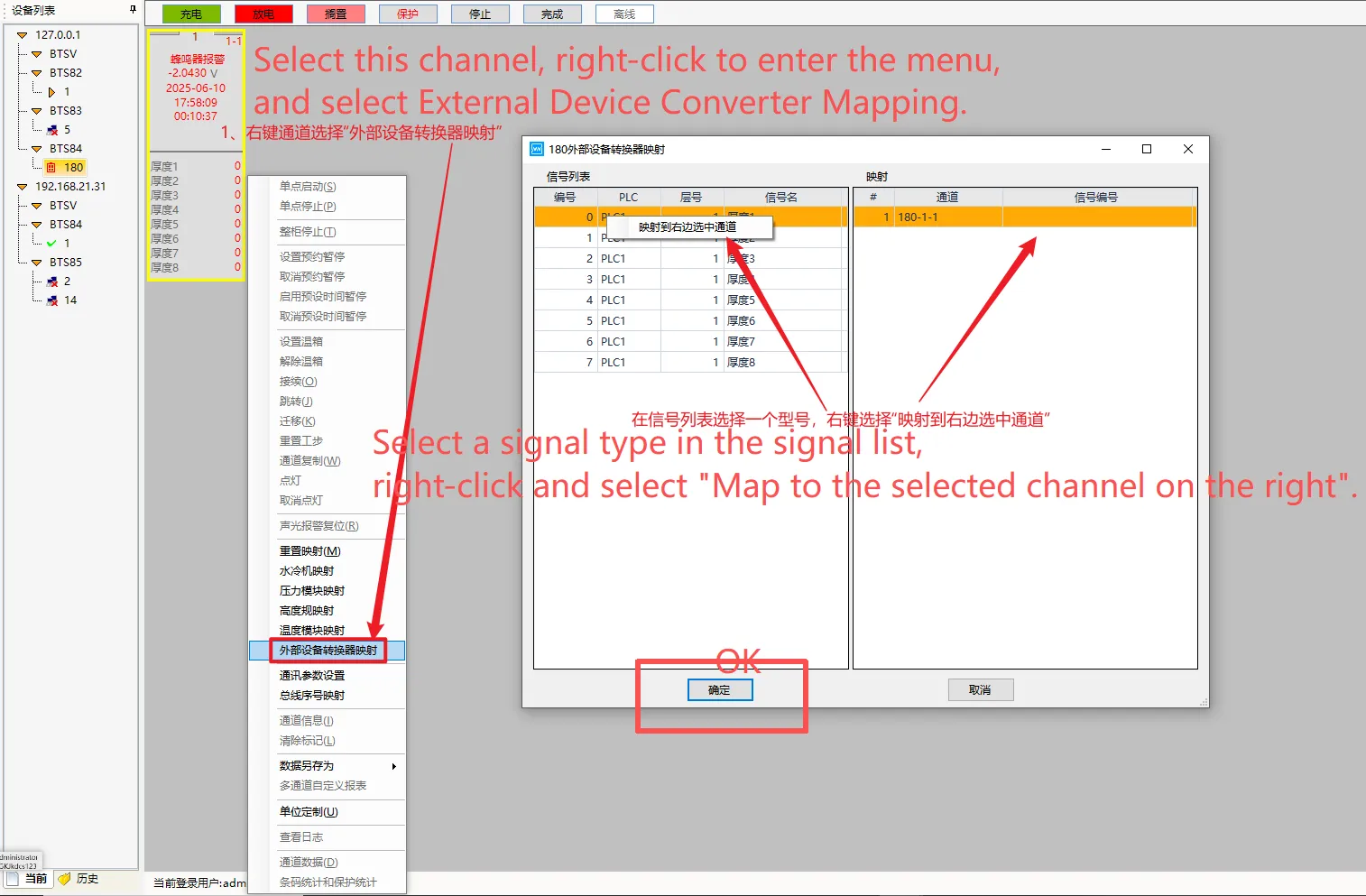
- Select this channel, right-click to enter the menu, and select External Device Converter Mapping. Select a signal type in the signal list, right-click and select “Map to the selected channel on the right”—OK
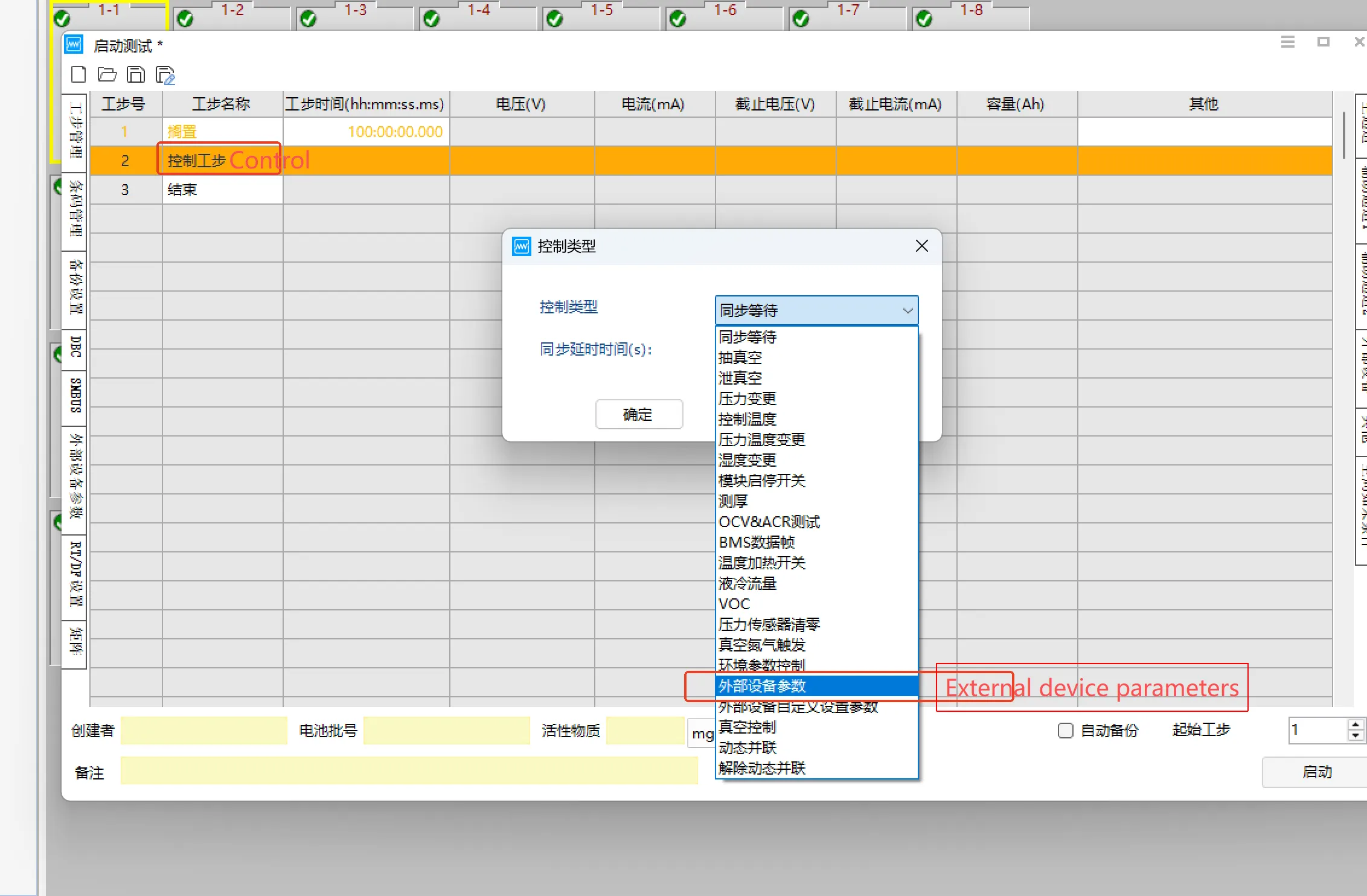
- Before setting up the test steps, set the temperature of the incubator using “Control” and select “External Device Parameters”.
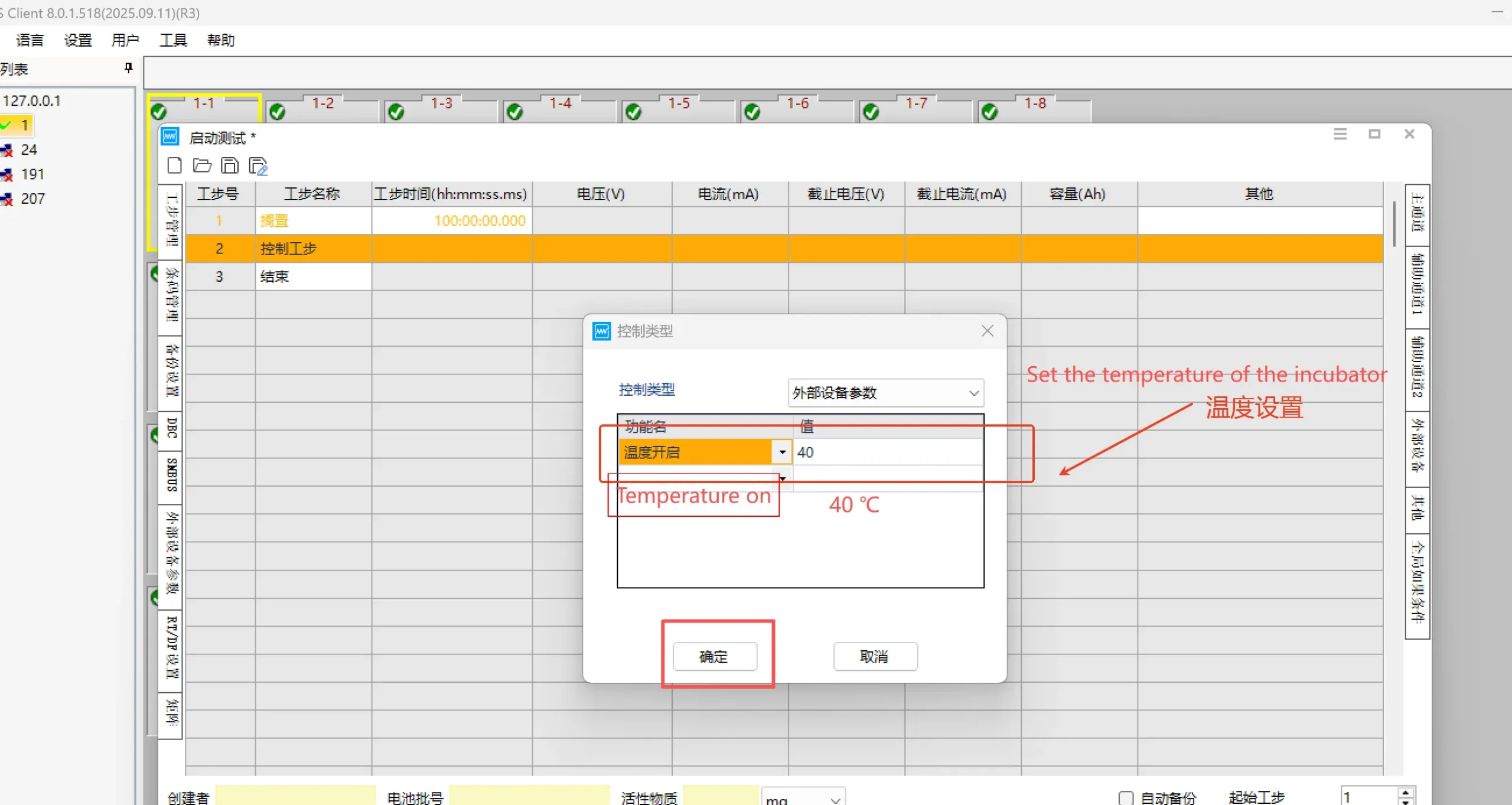
- A pop-up window will appear. Select “Temperature On” as the function name, and enter your desired temperature value, such as 40 degrees Celsius in this screenshot.
So you can control third-party chambers via Neware BTS 8.0
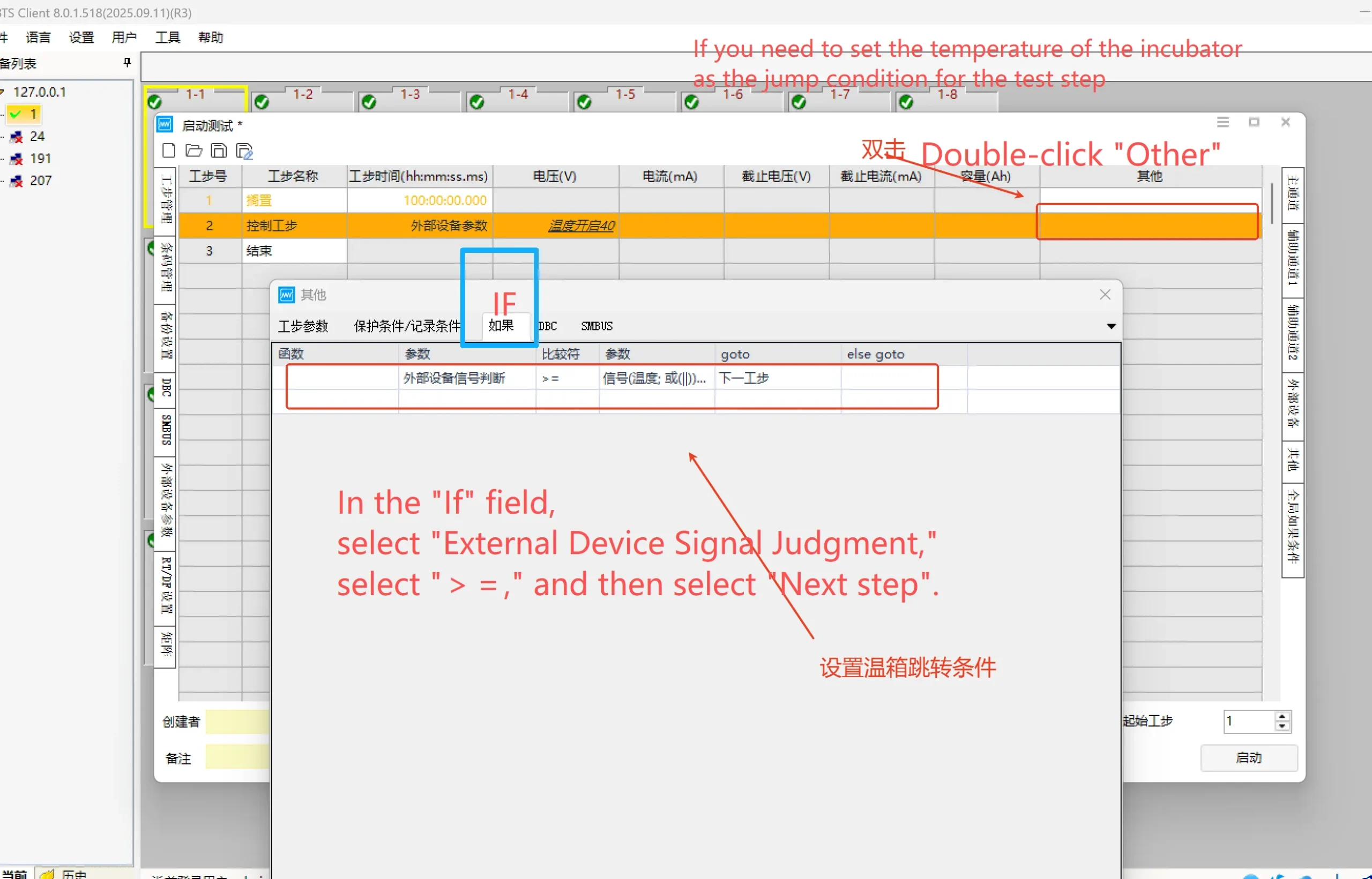
- If you need to set the temperature of the incubator as the jump condition for the test step, for example, when the incubator temperature is greater than or equal to 55 degrees Celsius, jump to the next step. Double-click “Other,” in the “If” field, select “External Device Signal Judgment,” select “>=” and then select go to “Next step”.